Showing posts with label Internet Tricks. Show all posts
How to check whether an email address exists?
How to check whether an email address exists?

Have you ever tried to find out whether an email address exists or not? There are times, when you're not sure about an email address, if its valid or not. In that case you send an email to that address and get your email bounced back after few hours. Isn't it a time consuming process to check the existence of an email address. Yes it is.
So today I have brought you two simple ways to check whether an email address exists or not, in seconds.
In this tutorial, I have used my Google or Gmail account to check any email address's existence.
Trick 1 : Check using your own Email address
This is the simplest trick to check the existence of an email. The only thing you need to do is, pretend that you've forgot your password.
Step 1.
Open the Gmail sign in window.
.png)
Step 2.
Select or type your email address but not your password. Then, click on Need Help? option below password.
Step 3.
In the following window, select I don't know my password.
Step 4.
There it'll ask for an email address whose password you've forgotten. Your email would be already typed in there. Replace your email address with the email address you want to check existence for. If it's correct there'll not be any problem and you'll proceed further, but if it's not, you'll see an error saying that 'No account found with that email address.'
.png)
So, by this you can simply check whether an email address exists or not.
Trick 2 : Check by creating a new account
This is an alternative to the previous trick but yet equally effective. It has a limit that it will work only for Google email service (Gmail).
Simply create a new account and type that email address in the username field (excluding @gmail.com). Google will let you know whether that username is available or not.
So these are the simple tricks to check the existence of an email address. Did you think it is that easy?? I guess no.
If you like this post then follow us on Facebook or like our Official Page.
Tag :
Internet Tricks
How to find the location of email sender in Gmail
How to find the location of email sender in Gmail

Hey guys, today we are going to see the real location of the unknown or known email sender in Gmail.
Gmail is one of the most popular free email service by world's greatest Company and the best Search engine, Google. What makes it popular is its unique features, Chat box, auto spam detection, filters and many more. This is the reason why millions of people are using Gmail, including me and maybe also you.
Now, when you'll use Gmail, there are chances when you receive mails from unknown senders.
So, today I'll help you in identifying that sender.
Tag :
Internet Tricks
How to share Youtube video links in Facebook groups
How to share YouTube video links in Facebook groups

Posting video to Facebook groups have always been a challenge as our best Social media site, Facebook, doesn't allow to share YouTube video links to its groups.
Whenever you'll try to share any of your video links to Facebook groups, it'll show you an error that this URL watch?v cannot be shared.
The big advantage to share YouTube Video links to Facebook groups is that your video reaches to thousands of people, which will also bring popularity to your channel.
Now, the problem is that many websites show you How to share YouTube videos to Facebook. But they do not tell you how to share them in Groups. They'll simply tell you to copy and paste the video URL in the group, which is not possible (at times) .
Believe me I've done a lot of research but could not find anything which is helpful to this topic. They'll show you to share the post on your Timeline, and then again sharing it in a group by selecting In a group option from top left drop-down menu. Then selecting the group's name and then sharing. Isn't it a long process if you want to share in at least 10 groups.
So today, first time ever on Internet, I'm gonna tell you How to share YouTube video links to Facebook Groups. This trick is 100% genuine and 200% working.
Just follow these simple steps: -
Step 1.
Play the YouTube video you wanna share on Facebook groups.
Step 2.
Under the video, you'll see some tabs named About, Share, Add to. Click on Share and then select Facebook option from the list.

Step 3.
A new window will pop-up. Click the Share button.
**The video will be posted on your Timeline.

Now, we are going to share it in the groups.
(Note: Above three steps are also important.)
Step 4.
Open your Facebook account and see your video posted there.

Step 5.
Right click on the video and select Copy link address option.

Step 6.
Open Notepad and paste the link there. It would be somewhat like : http://www.youtube.com/attribution_link?a=xlw4bkH1b7U&u=%2Fwatch%3Fv%3Db2yXdUrz5KE%26feature%3Dshare
Step 7.
Open any Group in which you want to share the video. Copy that link in the Group.
Your video's picture and link will come up immediately after pasting that link.
Finally Click on Post to Share your video in that group.

Bonus tip:
If you want to share any link quickly in many groups, follow this safe trick:- Open all the groups in which you want to share your link In New Tabs, Copy the link in one group and Press Ctrl+Tab to move to next group (i.e. next tab), repeat this till you reach the last tab.
When you get back to first tab, the link must have been updated with the picture, what simply you have to do is simply click on post button and move to next tab using Ctrl+Tab, repeat this process till the last group.
The video will be shared without any errors.
See the proof:

Stay connected, be updated.....
Tag :
Internet Tricks
How to open multiple websites with a single click
How to open multiple websites with a single click

Opening a website or two again and again surely does wastes your time.
For example, You log in to your Facebook account and then sign out after sometime. After a while, you're surely to log in again to your account and for this you'll open up your browser, type the url and then login.
But what if you simply open a file that will open Any Website(s) for you.
What will be that file??
That file will be a Windows batch file or a .bat file. After opening that file, your browser will be automatically launched and the specified websites will be opened. Isn't that sounds amazing??
So let's get started.......
Step 1.
Open Notepad.
Step 2.
Type the following:-
@echo off
start "Website's name" "Website's url"
start "Website's name" "Website's url"
start "Website's name" "Website's url"
**Replace "Website's name" with the original website's name.
Replace "Website's url" with the URL of the website you want to open. For ex:- www.facebook.com
Let me give you an example how the whole thing should look like.
@echo off
start "Facebook" "www.facebook.com"
start "Youtube" "www.youtube.com"
start "Internet Hub" "www.techohub.com"

Step 3.
Save this file as website.bat (.bat extension should remain same.)
Go to File > Save As.
Step 4.
Open that file and see the magic.
Now you don't need to open your favorite websites manually nor you have to make this .bat file again. If you want to visit a single website, you can make this file to open just that site.
So save your time and enjoy this trick...
Opening a website or two again and again surely does wastes your time.
For example, You log in to your Facebook account and then sign out after sometime. After a while, you're surely to log in again to your account and for this you'll open up your browser, type the url and then login.
But what if you simply open a file that will open Any Website(s) for you.
What will be that file??
That file will be a Windows batch file or a .bat file. After opening that file, your browser will be automatically launched and the specified websites will be opened. Isn't that sounds amazing??
So let's get started.......
Step 1.
Open Notepad.
Step 2.
Type the following:-
@echo off
start "Website's name" "Website's url"
start "Website's name" "Website's url"
start "Website's name" "Website's url"
**Replace "Website's name" with the original website's name.
Replace "Website's url" with the URL of the website you want to open. For ex:- www.facebook.com
Let me give you an example how the whole thing should look like.
@echo off
start "Facebook" "www.facebook.com"
start "Youtube" "www.youtube.com"
start "Internet Hub" "www.techohub.com"
Step 3.
Save this file as website.bat (.bat extension should remain same.)
Go to File > Save As.
Step 4.
Open that file and see the magic.
Now you don't need to open your favorite websites manually nor you have to make this .bat file again. If you want to visit a single website, you can make this file to open just that site.
So save your time and enjoy this trick...
And please If you like this post then follow us on Facebook or like our Official Page on Facebook.
How to increase your internet speed
How to increase your internet speed
Hi guys, today I'm gonna tell you how to increase your internet speed by 20%. In my previous post, I showed you How to increase your internet speed by using cmd but this trick will tell you how to increase your internet speed by Editing your Group Policy. You will surely observe a change in your internet speed.
Now just follow these simple steps:
Hi guys, today I'm gonna tell you how to increase your internet speed by 20%. In my previous post, I showed you How to increase your internet speed by using cmd but this trick will tell you how to increase your internet speed by Editing your Group Policy. You will surely observe a change in your internet speed.
Now just follow these simple steps:
Tag :
Internet Tricks
How to increase the speed of IDM
How to increase the speed of IDM
IDM is the best Download Manager of all time. It manages your downloads and increases your download speed. But you can still increase its speed by using a software called IDM Optimizer.
You can download that for free from here.
Then follow these simple steps:
IDM is the best Download Manager of all time. It manages your downloads and increases your download speed. But you can still increase its speed by using a software called IDM Optimizer.
You can download that for free from here.
Then follow these simple steps:
Tag :
Internet Tricks
How to download torrent files with IDM
How to download torrent files with IDM
Hi guys today i'm gonna tell you how to download torrent files with Internet Download Manager. You use torrent for downloading many different types of files such as movies, games, videos, songs, software, etc. but sometimes it may be messy and difficult for you to download files with low or no seeds. So this trick will tell you how to download torrent files with IDM and with faster speeds.
What are we gonna do??
We are going to download the .torrent files and uploading it to zbigz.com This will give you the link of your desired torrent files and you can download them with IDM....
Just follow these simple steps:
Step 1.
Download your .torrent file.
Step 2.
Just go to zbigz.com.

Hi guys today i'm gonna tell you how to download torrent files with Internet Download Manager. You use torrent for downloading many different types of files such as movies, games, videos, songs, software, etc. but sometimes it may be messy and difficult for you to download files with low or no seeds. So this trick will tell you how to download torrent files with IDM and with faster speeds.
What are we gonna do??
We are going to download the .torrent files and uploading it to zbigz.com This will give you the link of your desired torrent files and you can download them with IDM....
Just follow these simple steps:
Step 1.
Download your .torrent file.
Step 2.
Just go to zbigz.com.
Tag :
Internet Tricks
Chrome has flagged IDM integration as malicious
Chrome has flagged IDM integration as malicious
Hi friends, today i'm gonna tell you how to remove the error "Chrome has flagged IDM integration as malicious." Many a times you will see this error and its very annoying to download files with Google Chrome as its very slow. So we are going to tackle this error.
Just follow these simple steps:
Hi friends, today i'm gonna tell you how to remove the error "Chrome has flagged IDM integration as malicious." Many a times you will see this error and its very annoying to download files with Google Chrome as its very slow. So we are going to tackle this error.
Just follow these simple steps:
Tag :
Internet Tricks
How to integrate IDM into google chrome
How to integrate IDM into google chrome
Hi guys... Today we are going to discuss on How to integrate IDM into Google chrome. Most of us are aware of IDM and its tremendous features of boosting your download speed 5 times than normal. But because of applying crack to it, IDM usually disintegrates from most of the browsers. I have heard many people saying that my Internet Download Manager (IDM) integration has gone.
So we have worked on this to resolve this problem. We have brought you a way to do this. After reading this post you will be able to manually integrate Internet Download Manager to google chrome. This trick consists of 5 simple steps.
Here are the those:
Step 1.
Go to the settings of google chrome and then click on Extensions Tab.
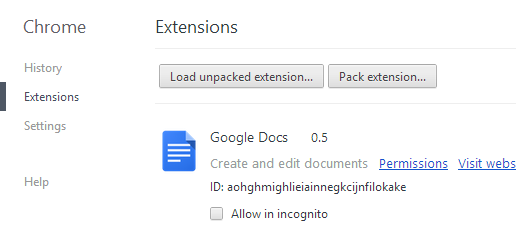
Step 2.
If you see the extension of IDM in the tab, just tick the box before the word Enable, and then it should be Enabled. If no extension is there proceed to step 3.
Step 3.
Go to the installation directory of Internet Download Manager and look for the file named IDMGCExt.crx.
Hi guys... Today we are going to discuss on How to integrate IDM into Google chrome. Most of us are aware of IDM and its tremendous features of boosting your download speed 5 times than normal. But because of applying crack to it, IDM usually disintegrates from most of the browsers. I have heard many people saying that my Internet Download Manager (IDM) integration has gone.
So we have worked on this to resolve this problem. We have brought you a way to do this. After reading this post you will be able to manually integrate Internet Download Manager to google chrome. This trick consists of 5 simple steps.
Here are the those:
Step 1.
Go to the settings of google chrome and then click on Extensions Tab.
Step 2.
If you see the extension of IDM in the tab, just tick the box before the word Enable, and then it should be Enabled. If no extension is there proceed to step 3.
Step 3.
Go to the installation directory of Internet Download Manager and look for the file named IDMGCExt.crx.
Tag :
Internet Tricks
How to increase your internet speed using cmd
How to increase your internet speed using cmd
Hi guys, today I'm gonna tell you a simple trick to have faster internet speed by using cmd. If your internet speed has screwed you, then this is what you need. I'm sure you would love to increase your internet speed, even if you already have that much. After all who doesn't love speed? There's no one in this world who would like to use internet at slow speed. Slow speed worsens your experience to use internet and wastes your precious time. So to overcome this situation I have brought you this simple trick to have faster internet speeds. However, there are many more tricks to increase your internet speed on the internet but from my personal experience I feel that it is the most simple and efficient trick. It will surely increase your internet speed.

What are we gonna do here?
We are going to apply some tweaks in cmd so as to achieve this objective.
Increase your internet speed by using this simple trick.
Here are the Steps:
Step 1.
Run cmd as an administrator.

Read => How to increase your internet speed 20% by another simple trick.
Step 2.
Now type, cd/ and press enter.

Hi guys, today I'm gonna tell you a simple trick to have faster internet speed by using cmd. If your internet speed has screwed you, then this is what you need. I'm sure you would love to increase your internet speed, even if you already have that much. After all who doesn't love speed? There's no one in this world who would like to use internet at slow speed. Slow speed worsens your experience to use internet and wastes your precious time. So to overcome this situation I have brought you this simple trick to have faster internet speeds. However, there are many more tricks to increase your internet speed on the internet but from my personal experience I feel that it is the most simple and efficient trick. It will surely increase your internet speed.
What are we gonna do here?
We are going to apply some tweaks in cmd so as to achieve this objective.
Increase your internet speed by using this simple trick.
Here are the Steps:
Step 1.
Run cmd as an administrator.
Read => How to increase your internet speed 20% by another simple trick.
Step 2.
Now type, cd/ and press enter.
Tag :
Internet Tricks
Everplex YouTube Dark+Black Theme
Everplex YouTube Dark+Black Theme
Recently many extension come to make YouTube experience much much better than earlier. Some of them are 'Turn Off the Lights', 'Hacker Vision', 'Dark Skin for Youtube'. Now there comes a new extension with updates for both google chrome and Firefox. This extension is 'Everplex YouTube Dark+Black Theme'.
Recently many extension come to make YouTube experience much much better than earlier. Some of them are 'Turn Off the Lights', 'Hacker Vision', 'Dark Skin for Youtube'. Now there comes a new extension with updates for both google chrome and Firefox. This extension is 'Everplex YouTube Dark+Black Theme'.
Tag :
Internet Tricks
Youtube new feature of playing videos
YouTube new feature of playing videos:
YouTube brings a new feature to play videos online. Earlier we have only the ability to play videos in only quality mode. But in new feature you can play video with speed option. To do this
1. Play the video you wanted
2. Click on setting option.
3. Now you have two options, first one is of quality and the second one is about speed.
 More proofs:


4. Choose your settings and enjoy the video how you like.
** Note: You will not found this new feature in old videos or all videos, but you can check this in every video. If available enjoy otherwise watch in old mode .
If you like this post then please follow us on Facebook or like our Official Page on Facebook.
YouTube brings a new feature to play videos online. Earlier we have only the ability to play videos in only quality mode. But in new feature you can play video with speed option. To do this
1. Play the video you wanted
2. Click on setting option.
3. Now you have two options, first one is of quality and the second one is about speed.


4. Choose your settings and enjoy the video how you like.
** Note: You will not found this new feature in old videos or all videos, but you can check this in every video. If available enjoy otherwise watch in old mode .
If you like this post then please follow us on Facebook or like our Official Page on Facebook.
Tag :
Internet Tricks
zoom in closer on Google Maps
Google map trick:
Google Maps provide us maps in a very close view. But some of the maps are which are not fully zoomed in. Here is a trick by which you can see maps more zoomed in then default maximum on google maps. This trick will not work on all maps, but will do on such maps whose closer view is possible. But try it. Here are steps. Just follow them:1. Open google maps and find maps of Location whose you want.
2. Put the map on Maximum Zoomed in position.

3. After it Click on chain link located left to it as shown in Screenshots

4. Copy this link and put it into your address bar but attention, dont click enter to go.
5. Copy the link in notepad. Go to the end of link. It will look like
"http://maps.google.co.in/maps?q=Delhi&hl=en&ll=28.635308,77.22496&spn=0.001278,0.002642&sll=36.778261,-119.417932&sspn=19.069764,43.286133&oq=DELHI&t=h&hnear=New+Delhi,+Delhi&z=19"
6. Change value of 19 to upto 22. Try all 20,21,22 and paste it into address bar and press enter.
7. If more zoom in exist for map then it will show you desired result.
If you like this post then please follow us on Facebook or like our Official Page on Facebook.
Tag :
Internet Tricks
How to find latest and working downloading links?
How to find latest and working downloading links?
Now a days, there are million of free downloading sites or links providing sites. We search on any search engine likes google, yahoo, bing and Others. We see a list of results. We visit the sites one by one until we reached our goal. Also we encountered with many dead links and we get sad.
Now to avoid this follow some simple steps:
1. First of all, if you want to download for free, search for blogspot. There are many blogspot created day by day. After entering the search in google search box type 'blogspot' after every entry.
2. Now it is not possible that every blog has a live link, they can have dead link. So to sort out this enter the latest date in term of months and year.
For example: " FIFA 2013 FREE DOWNLOAD BLOGSPOT 2013"

3. You will get 8/10 search result of 2013 ( i.e. Posts put by bloggers in March). 90% proability is of finding right and working links.
I hope u understand. For any query please comment, support will be always for you.
*NOTE: For better understanding please refer screenshots.
If you like this post then please follow us on Facebook or like our Official Page on Facebook.
Now a days, there are million of free downloading sites or links providing sites. We search on any search engine likes google, yahoo, bing and Others. We see a list of results. We visit the sites one by one until we reached our goal. Also we encountered with many dead links and we get sad.
Now to avoid this follow some simple steps:
1. First of all, if you want to download for free, search for blogspot. There are many blogspot created day by day. After entering the search in google search box type 'blogspot' after every entry.
2. Now it is not possible that every blog has a live link, they can have dead link. So to sort out this enter the latest date in term of months and year.
For example: " FIFA 2013 FREE DOWNLOAD BLOGSPOT 2013"

3. You will get 8/10 search result of 2013 ( i.e. Posts put by bloggers in March). 90% proability is of finding right and working links.
I hope u understand. For any query please comment, support will be always for you.
*NOTE: For better understanding please refer screenshots.
If you like this post then please follow us on Facebook or like our Official Page on Facebook.
Tag :
Internet Tricks
How to detect correct downloading Button on a downloading website?
How to detect correct downloading Button on a downloading website?
We visit many downloading websites to download softwares, music, videos, games and many more. But sometimes we get more than one downloading button on a downloading page. Sometime we click on wrong button which in our sense is correct and we found it to an advertising page. So the question is how to detect correct Downloading button. The answer is very simple. Follow these steps:

1. After visiting the downloading page, Put mouse cursor on any download button.
2. You will see a highlighted link at left-bottom corner of the screen.

3. Analyze the link. If it starts with ads. or with any other advertising link------------- it is an ad, so it is not your downloading link. Otherwise it is your original Downloading link. Also on many websites like 2shared.com, the original downloading link start with javasrcipt (0)..

For better visibility and understanding please open the screenshots in new tab.
If you like this post then please follow us on Facebook or like our Official Page on Facebook.
We visit many downloading websites to download softwares, music, videos, games and many more. But sometimes we get more than one downloading button on a downloading page. Sometime we click on wrong button which in our sense is correct and we found it to an advertising page. So the question is how to detect correct Downloading button. The answer is very simple. Follow these steps:

1. After visiting the downloading page, Put mouse cursor on any download button.
2. You will see a highlighted link at left-bottom corner of the screen.

3. Analyze the link. If it starts with ads. or with any other advertising link------------- it is an ad, so it is not your downloading link. Otherwise it is your original Downloading link. Also on many websites like 2shared.com, the original downloading link start with javasrcipt (0)..

For better visibility and understanding please open the screenshots in new tab.
If you like this post then please follow us on Facebook or like our Official Page on Facebook.
Tag :
Internet Tricks
How to get alerts for suspicious acitivity on google account
How to get alerts for suspicious activity on Google account:
Google allows a two-step authentication verification for any suspicious activity on Google account. If you have any suspicious activity on your account then you will get alert on your mobile phone. In the past, Google offered to e-mail you when your account has suspicious activity. So to prevent it follow these steps:
Step 1.
Log in the account. Click on profile picture and then account.

Step 2.
Click on security button.

Step 3.
Scroll down and verify your mobile phone if you have not verified it earlier.

Step 4.
Now below it, in notification types, check the both boxes of phone option.
Now you are ready for getting notification if something is going wrong with your account.
If you like this post then please follow us on Facebook or like our Official Page on Facebook.
Google allows a two-step authentication verification for any suspicious activity on Google account. If you have any suspicious activity on your account then you will get alert on your mobile phone. In the past, Google offered to e-mail you when your account has suspicious activity. So to prevent it follow these steps:
Step 1.
Log in the account. Click on profile picture and then account.

Step 2.
Click on security button.

Step 3.
Scroll down and verify your mobile phone if you have not verified it earlier.

Step 4.
Now below it, in notification types, check the both boxes of phone option.
Now you are ready for getting notification if something is going wrong with your account.
If you like this post then please follow us on Facebook or like our Official Page on Facebook.
Tag :
Internet Tricks
Tools for Checking Duplicate Content
Tools for Checking Duplicate Content
Here are some tools which can be used to check your articles or documents which you write by hard work and someone is using them very easily. So check out.....
1. Copyscape:

In this tool what you have to do that paste your URL in search box and then click on go. In result it will display results of websites that have similar words to your article or blog.

Just click on the link, it will show number of words similar to your blog and percentage of matching. But to see all results you should have a premium account.
2. Similar page checker:

In this tool you have to enter two URL. One is of you and the other is of suspect URL. After entering URL just click on submit button.

The result it will show in percentage which is how much your website content is similar to suspect website.
3. Articles Checker:

In this tool you have two options whether enter the text of your document in text search box or enter the URL of your document in URL search box. Select search engines (from yahoo/Google) and press enter. It will show result in "Total Matched Phrases / Total Submitted".
4. Plagiarism Checker:

In this tool just enter the text of your document and click on search.

It will display result on Google search box. All the links having same text will be displayed on search box.
5. Dupli Checker:

In this tool, enter the text of your desired document and just click on search box. It will show its desired results.
Or you can choose Google for content checking. Just put some text of your document into search box. It will display all results(links) which have those same phrases or words.
If you like this post then please follow us on Facebook or like our Official Page on Facebook.
Here are some tools which can be used to check your articles or documents which you write by hard work and someone is using them very easily. So check out.....
1. Copyscape:
In this tool what you have to do that paste your URL in search box and then click on go. In result it will display results of websites that have similar words to your article or blog.
Just click on the link, it will show number of words similar to your blog and percentage of matching. But to see all results you should have a premium account.
2. Similar page checker:
In this tool you have to enter two URL. One is of you and the other is of suspect URL. After entering URL just click on submit button.
The result it will show in percentage which is how much your website content is similar to suspect website.
3. Articles Checker:
In this tool you have two options whether enter the text of your document in text search box or enter the URL of your document in URL search box. Select search engines (from yahoo/Google) and press enter. It will show result in "Total Matched Phrases / Total Submitted".
4. Plagiarism Checker:
In this tool just enter the text of your document and click on search.
It will display result on Google search box. All the links having same text will be displayed on search box.
5. Dupli Checker:
In this tool, enter the text of your desired document and just click on search box. It will show its desired results.
Or you can choose Google for content checking. Just put some text of your document into search box. It will display all results(links) which have those same phrases or words.
If you like this post then please follow us on Facebook or like our Official Page on Facebook.
Tag :
Internet Tricks
